Turn any photo into text you can copy.
Snap a photo of a page, a receipt, a signboard or a screenshot — this free OCR tool reads the words out of it in seconds, in English or Urdu.
Up to 5 images at once, right in your browser. Paste a screenshot with Ctrl+V, drag and drop, or photograph the page with your phone. Your images never leave your device.
Image to Text
Upload a photo or screenshot — get the text out of it.
Drop photos here, or
JPG / PNG / GIF / WebP / BMP — up to 5 images, 25 MB each. Or paste a screenshot with Ctrl+V (Cmd+V on Mac). The text is read on your device only — nothing is uploaded.
Pixels you cannot use
“A photo of a page is only dots of colour. You cannot search it, copy a line from it, or paste it into a document.”
Words you can work with
“HELLO WORLD — Image to Text works! The same words, now as plain text you can copy, edit, search and paste anywhere.”
How to extract text from an image in 4 steps
- Add your images. Drag and drop up to 5 photos, choose files, paste a screenshot with Ctrl+V, or tap “Take a photo” on your phone — or tap “Try a sample image” to see it work first.
- Pick the language. English, Urdu, or English and Urdu together. The reader cannot guess the language by itself, so picking the right one matters.
- Tap “Extract text”. The progress bar shows each step — the reader loads, the language dictionary loads, then the text is read line by line. Each result gets a confidence score.
- Fix, copy or download. Every result box is editable, so fix any wrong line first. Then copy the text, download it as a .txt file, or download all results in one file.
Who is this image to text tool for?
Students, office workers, shopkeepers and creators — anyone who is tired of retyping what is already in a photo.
Students
Copy notes from a textbook page, a whiteboard or a handout without typing a word — then paste the text into your assignment or revision notes.
Office workers
Pull the text out of a receipt, an invoice, a form or a scanned letter, and paste it into a spreadsheet or an email instead of retyping it.
Shopkeepers & small business
Read the text off a supplier’s price list, a delivery note or a product label, and keep it as a file you can search later.
Creators
Turn a screenshot of a chat, a signboard or a quote into text for a caption, a blog post or a video script — in seconds, not minutes.
What is image to text (OCR), and how does it work?
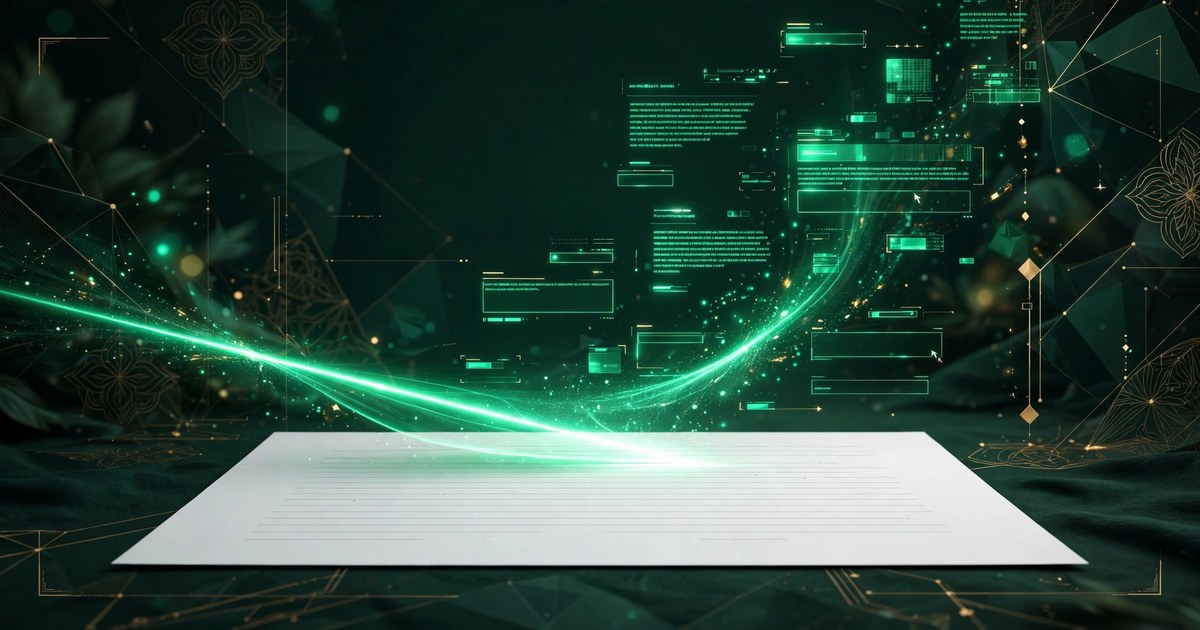
Image to text — usually called OCR, short for Optical Character Recognition — is the technology that reads the words out of a photo and turns them into real text you can copy, edit and search. A photo of a page is just dots of colour: a computer cannot search it, copy a line from it, or translate it. OCR looks at the shapes in the picture, recognises the letters and words, and writes them out as ordinary text. This free image to text tool runs the reading entirely in your browser with free OCR software (Tesseract.js): your photo is never uploaded to any server, so even private documents are safe to read here.
How to extract text from a photo
There are only four steps. First, add the photo — drag and drop, choose a file, paste a screenshot with Ctrl+V, or photograph the page with your phone. Second, pick the language of the text: English, Urdu, or English and Urdu together. Third, tap “Extract text” and wait a few seconds while the progress bar shows each step — the reader loads, the language dictionary loads, then the text is read line by line, with a confidence score on each result. Fourth, fix any wrong line in the editable result box, then copy the text or download it as a .txt file. The first extraction takes a little longer than the rest, because the browser downloads the reading software and the language dictionary the first time (about 10–20 seconds for Urdu); after that, the same language reads much faster.
English and Urdu — which languages can it read?
This tool reads English and Urdu. English is the default and reads fastest. For Urdu, choose “Urdu” before you extract — Urdu script reads best on clear, straight photos with good light, and printed Urdu (from a book, a newspaper or a signboard) reads far better than handwritten Urdu. Urdu results are shown right to left. If a photo has both languages mixed together — for example an English heading over Urdu paragraphs — choose “English + Urdu” and the reader checks both. One honest limit: the reader works with the language you pick, so it cannot guess the language by itself — pick the language before you extract, or the words may come out wrong. Other languages are not supported yet.
What it reads well — and what it does not
| Reads well | Struggles |
|---|---|
| Screenshots, documents, letters, book pages | Joined-up handwriting |
| Receipts, invoices, forms, ID cards | Very small or blurred text |
| Signs, menus and posters photographed straight on | Text on busy photos, or at a steep angle |
| Scanned pages at a normal resolution | Decorative fonts and tables with many lines |
| Clear Urdu words in a plain font | Urdu-Indic digits — check numbers in Urdu documents |
Tips for the most accurate result
- Take the photo straight and close. The page should fill the photo, with the lines level — a tilted or far-away photo is the most common reason for wrong words.
- Use good, even light. Daylight or a bright room works best. Shadows, glare and flash reflections confuse the reader, especially on glossy paper.
- Dark text on a light background reads best. Black print on white paper is ideal. Light text on a dark background, coloured text and fancy decorative fonts are all harder to read.
- Crop to just the text. If the photo has a lot of background — a desk, a hand, other objects — crop it to the words first, and the reader will be faster and more accurate.
- Watch the confidence score. Above 85% the text is usually clean; below 60% it is worth checking line by line — or taking the photo again, closer and straighter.
- Check the result before you use it. OCR is very good on clear printed text, but it is not perfect: numbers like 0 and O, or 1 and l, are the classic mistakes. Always read the extracted text once before you paste it into an assignment or a form.
Example
Try it with the sample image: tap “Try a sample image” and a clear test photo loads with the words “HELLO WORLD” and “Image to Text works!” written on it. Pick English, tap “Extract text”, and within a few seconds the same words appear in the result box, with a confidence score, ready to copy. Now try a real photo of your own — for example, take a straight, well-lit photo of a page from a book, upload it, and watch the whole paragraph appear as text. Compare the result with the photo: on a clear photo, almost every word matches; on a blurry or tilted photo, a few letters may be wrong, and that is normal for OCR.
Mistakes people make with OCR
- Photographing a screen. A photo of a phone or computer screen almost always has glare and moiré patterns — use the original screenshot instead.
- Picking the wrong language. Reading Urdu with the English dictionary (or the other way round) gives nonsense — pick the language first.
- Trusting the result without reading it. A wrong digit in a phone number or an amount is easy to miss — always read the extracted text once.
- Expecting handwriting to read. The reader is trained on printed text; joined-up handwriting is a different problem, and small handwriting usually does not read at all.
- Uploading a tiny, far-away photo. If the words look tiny on your phone screen, move closer and take the photo again — a photo should be at least 1000 pixels wide, with the text at least 30 pixels tall.
Frequently asked questions
Is this image to text converter really free?
Yes — completely free, with no sign-up, no daily limit and no watermark. The reading runs on your own device with free, open-source OCR software (Tesseract.js), so there is no server bill to pay for and nothing to charge you for. Read as many photos as you like.
Does it read Urdu text too?
Yes. Choose “Urdu” or “English + Urdu” before you extract. Urdu takes a little longer to load the first time (about 10–20 seconds), and it reads best on clear, straight photos with good light. Printed Urdu from a book, newspaper or signboard reads far better than handwritten Urdu. Urdu results are shown right to left.
Are my photos uploaded anywhere?
No — never. Your photo is read entirely in your browser and never leaves your device, so even private documents, receipts and ID photos are safe to read here. Nothing is uploaded, stored or logged. The only thing your browser downloads is the reading software and the language dictionary, the first time you use a language.
Can I paste a screenshot instead of uploading a file?
Yes. Copy a screenshot (or any image) to your clipboard, then press Ctrl+V on Windows or Cmd+V on a Mac anywhere on this page — the image appears in the list, ready to extract. You can also drag and drop up to 5 images at once, or tap “Take a photo” on your phone to photograph a page directly.
Can I read several images at once?
Yes — up to 5 images in one go. Add them all, press “Extract text”, and the tool reads them one after another, each with its own result box, confidence score, copy button and download button. “Download all” saves every result into one .txt file.
What does the confidence score mean?
Each result shows how sure the reader is, as a percentage. Above 85% the text is usually clean. Between 60% and 85%, check the lines before you use them. Below 60%, read every line carefully — the photo is probably blurry, tilted or too far away, and a closer, straighter photo will do much better.
Why is some of the text wrong?
OCR reads printed text best: clear, straight, well-lit photos with dark text on a light background. Blurry photos, tilted pages, tiny text, fancy decorative fonts and handwriting are harder — try a closer, straighter photo with even light, or crop to just the text before uploading. Numbers like 0 and O, or 1 and l, are the classic mistakes, so always read the result once before you use it.
Can it read a scanned PDF?
Not yet — this tool reads image files (JPG, PNG, GIF, WebP, BMP). If your document is a scanned PDF, take a screenshot of each page, or export the pages as images first, then read them here. PDF support may be added later.
Does it read handwriting?
Not well. The reader is trained on printed text, so screenshots, documents, receipts, signs and book pages work best. Neat, large block capitals sometimes read; small or joined-up handwriting usually does not. For handwritten notes, type the important lines yourself and use OCR only for the printed parts.
More free tools
From the same maker — free, no sign-up.
ToolKamai
33 free online tools — calculators, converters, image tools and more, including this same OCR tool.
Image to Text on ToolKamai
The same OCR tool, also available inside ToolKamai with 32 other free tools.
Image Resizer
Resize any photo by pixels or percent — handy for cropping a page to just the text before OCR.
Image Compressor
Reduce JPG/PNG photo size without uploading — great for forms & WhatsApp.